By default, all Ascendix Search users use OpenStreetMap to geocode their data. It is a free open-source service that doesn't require additional setup.
If you wish to use Google Maps as a map provider, you must have a Google API key.
Steps how to configure Google API key also can be found here.
Step 1. Open the Ascendix Search Setup
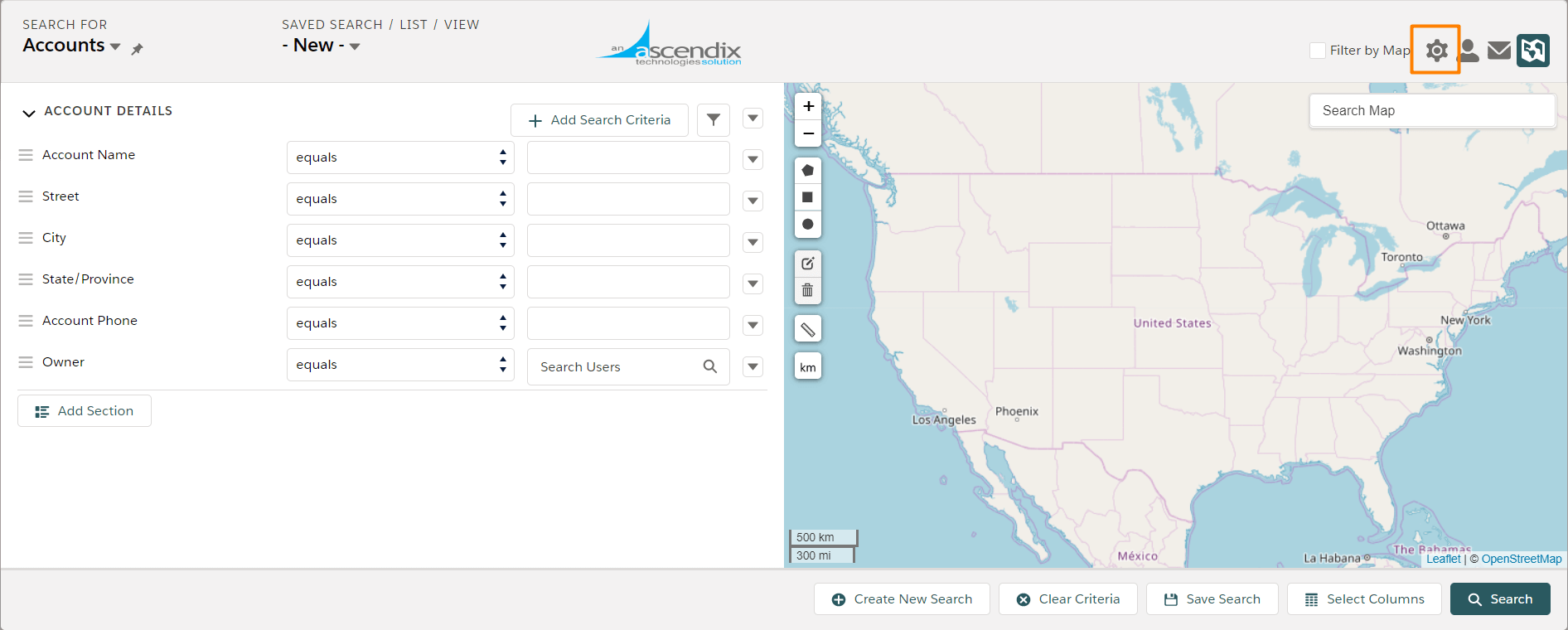
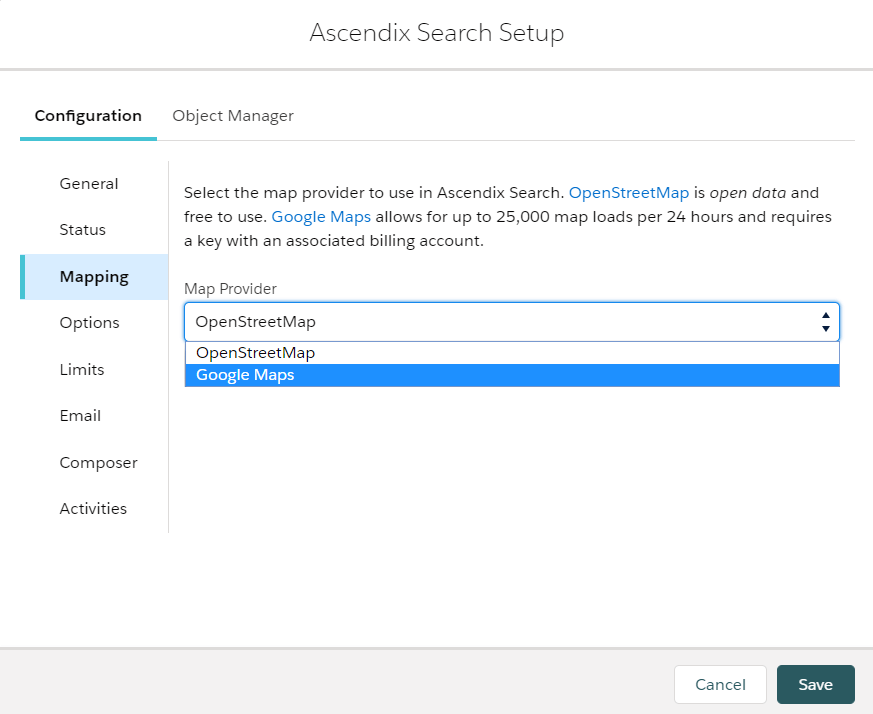
Step 2. Navigate to Mapping and Select Google Maps as a map provider
Step 3. Provide a Google Maps Key
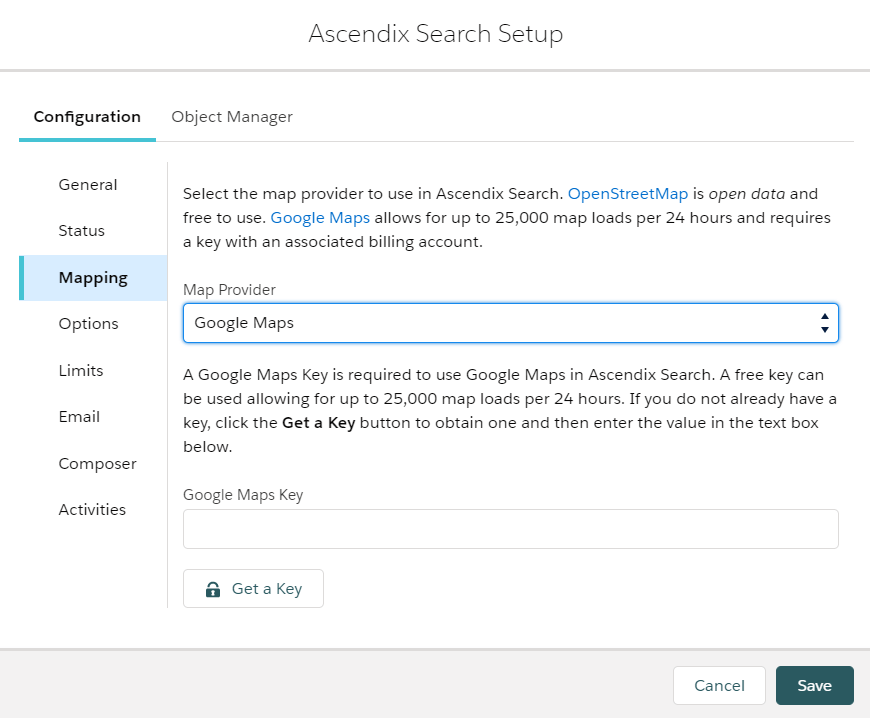
If you do not already have a key, click the Get a Key button to obtain one and then enter the value in the text box below. If you have a key but would like to check if it is still valid, follow this guide.
Step 4. Provide a Google Maps Map ID
Note: A Map ID is required as of version 1.28 — map pins on the Google Maps view render with Google's Advanced Markers, which do not work without one. Without a Map ID, records will not appear as pins on the Google Maps view.
- In Google Cloud Console, go to Google Maps Platform > Map Management.
- Click Create Map ID and set Map type to JavaScript.
- Copy the generated Map ID.
- In Ascendix Search, click Settings (gear icon) > Configuration > Mapping and paste it into the Google Maps Map ID field.
- Click Save.
.jpeg) If the issue persists, contact your Ascendix representative.
If the issue persists, contact your Ascendix representative.